Nexarch guide

How Nexarch works: organise your businesses, links and tasks.

Manage multiple businesses without losing track of websites, domains or daily work. Follow six practical steps to build your digital asset inventory and turn it into a useful everyday workspace.

Start the guide

Create your private workspace

Choose a plan, enter your details, and complete secure checkout. Your account is created only after payment succeeds.

  • Choose email or Google signup.
  • Select your language and confirm your details.
  • Complete payment and follow the secure setup step.
Illustration of the Nexarch account setup process

Use Overview as your starting point

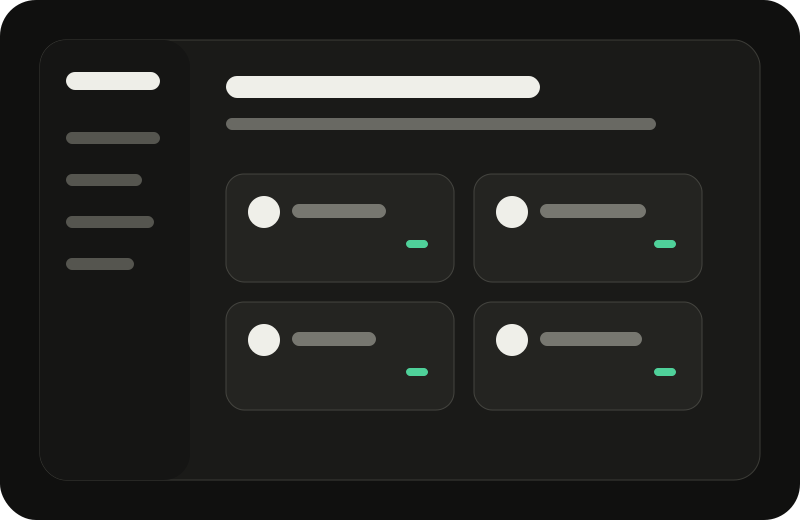
Overview shows the main areas of your workspace in one place. Use it to see what you have saved and move quickly to the area that needs attention.

  • Review the totals for your workspace.
  • Open Businesses, Links, Learning, Goals, or Tasks.
  • Use search when you need to find something quickly.
Illustration of the Nexarch overview dashboard

Add a business and its important links

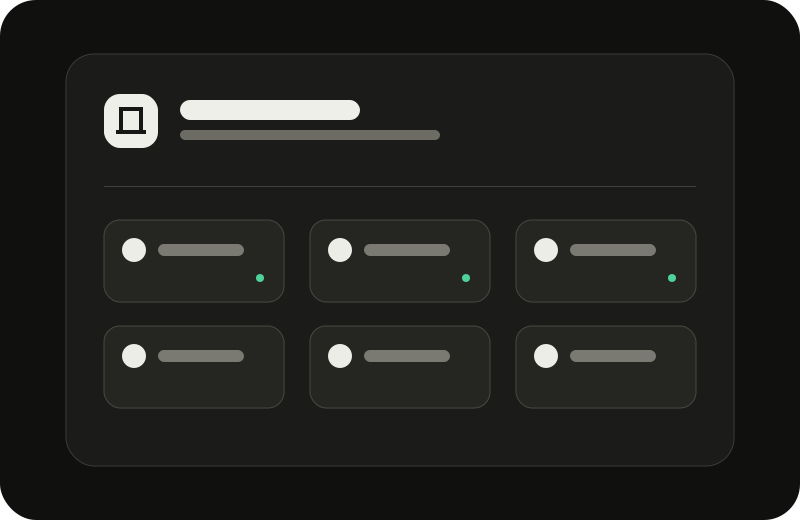
Create one place for each business or brand. Keep its website, inbox, hosting, domain, social accounts, and useful admin links together.

  • Open Businesses and choose Add business.
  • Enter a clear name and short description.
  • Add only the links and accounts you genuinely use.
Illustration of a business workspace with connected links

Keep personal links easy to find

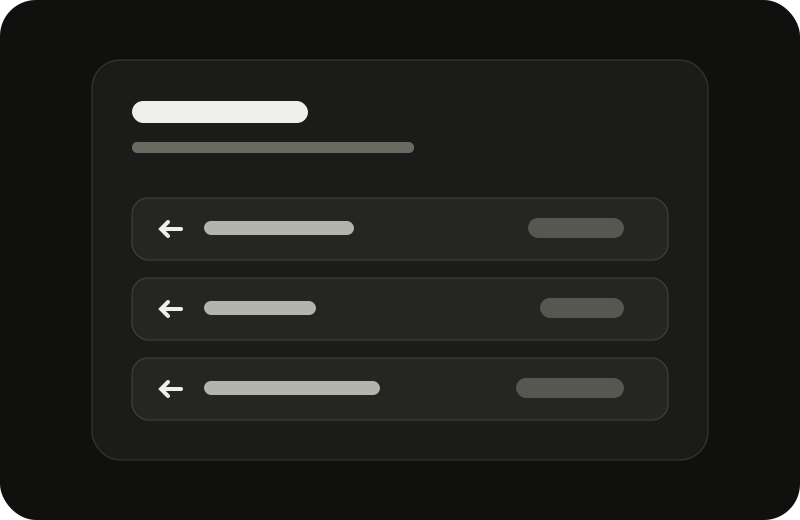
My Links is for useful links that do not belong to one business. Group them by category so you can recognise them at a glance.

  • Give every link a name you will understand later.
  • Choose the closest category.
  • Open saved links directly from your workspace.
Illustration of organised personal links

Turn plans into clear next actions

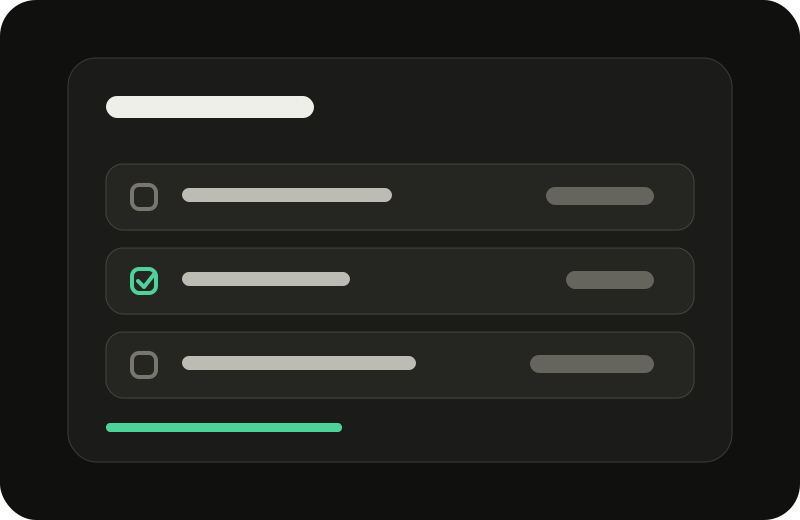
Use Learning for courses and books, Goals for outcomes, and Tasks for the work you want to complete. These areas help you move from information to action.

  • Save learning items you are actively using.
  • Give goals a realistic target date.
  • Use daily tasks for today’s priorities and uncheck them when you need a fresh start.
Illustration of goals, learning items, and daily tasks

Make Nexarch feel familiar

Settings lets you update your profile, language, timezone, appearance, and account preferences. Your chosen language is applied across the product interface.

  • Choose your preferred language and timezone.
  • Select a theme, palette, and comfortable density.
  • Save changes, then continue working from any section.
Illustration of language, timezone, and appearance settings

Your workspace grows with you.

You do not need to complete everything at once. Return whenever something changes and keep only the information that helps you work clearly.

Open Nexarch